GTA 6 Settings: Subtitles, Controls and Camera Comfort
Find subtitle, text size, camera comfort and controller settings in GTA 6. Follow the in-game menu paths on PS5 and Xbox Series X|S during your first session.
On this page
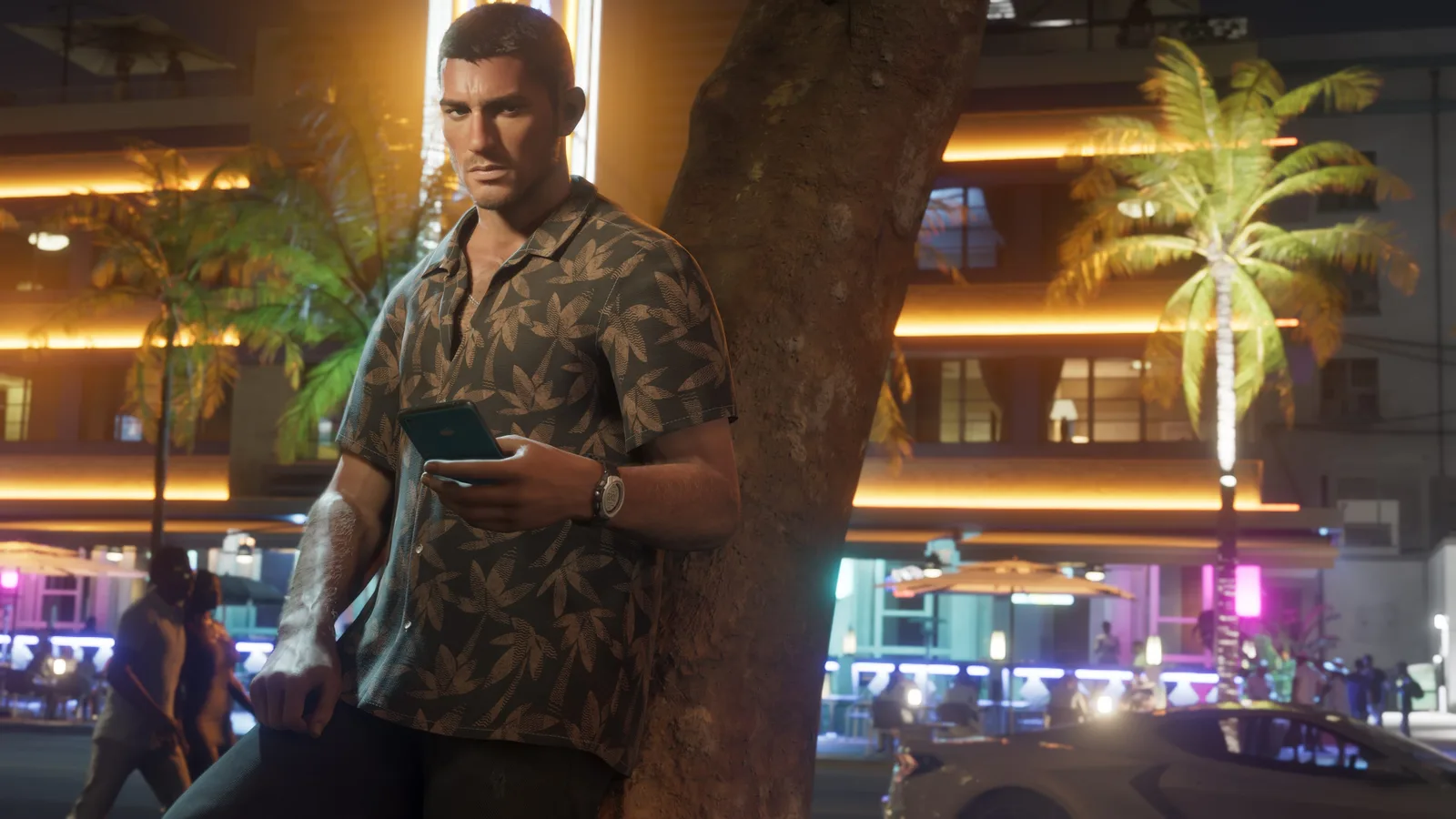
Image: Rockstar Games
Pause GTA VI and open Settings. To turn on dialogue text, open UI → Subtitles & Captions. If the writing elsewhere on the screen is too small, the separate UI → Scaling & Readability section is the place to start. Both are inside the game on PS5 and Xbox Series X|S.
Which setting should I open?
| What you want to change | Where to look under Settings |
|---|---|
| Read dialogue on screen | UI → Subtitles & Captions |
| Read prompts and interface text from the sofa | UI → Scaling & Readability |
| Adjust how the camera moves | Camera → Comfort |
| Change look sensitivity or invert the controls | Controller |
| Look up the button layout for driving or swimming | Control Scheme, then the relevant activity |
| Find narration options | Audio → Narration |
| Make the scene easier to distinguish | Display → High-Contrast Shaders |
Set up subtitles and readable text
Start with the problem you can see. If you can read the menus comfortably but miss spoken lines over the radio, try subtitles first. If you can follow dialogue but have to lean forward for prompts, try interface scaling first. After each change, close the menu and check from your normal playing distance. A size that works while you are standing beside the television can still be hard to read from the sofa.
Check camera motion and controller layout separately
If turning the camera by hand feels too fast, open Controller and check look sensitivity. If the camera movement itself is uncomfortable, start in Camera → Comfort. Rockstar also lists separate camera sections for travelling on foot and in vehicles. Try walking and then driving before settling on a change that works in both.
For a button prompt you do not recognise, open Control Scheme and choose the activity you were doing. GTA VI lists different layouts for activities such as swimming and flying. Looking at the on-foot layout while trying to work out an aircraft input can send you to the wrong control. On PS5, DualSense-specific adjustments are under Controller.
Undo a change
Take a photo of settings you already like before experimenting. Rockstar documents restore options along the bottom of the settings screen. Check the scope of the option shown before confirming, especially if you have already customised several categories.
Menu names follow Rockstar’s November 18 support guide. The hero is an official promotional screenshot of Jason on a neon-lit street. For help before the game opens, use our installation and startup guide. Once your controls are comfortable, see the spoiler-light first missions guide.
Sources
Related guides
- GTA 6 Cheats: Unlocks, PS5/Xbox Inputs and Safe SavesLearn when GTA 6 cheats unlock, how to enter PS5 and Xbox inputs, and why to save first. Includes checked weather, time and vehicle examples.
- GTA 6 Trophies and Achievements: Lists and Progress TipsTrack all 55 GTA 6 PS5 trophies and 55 Xbox achievements, with ranks, gamerscore and hidden awards. Plan progress using sourced earning tips.
- GTA 6 First Missions: A Spoiler-Light Starting GuideStart GTA 6 with the opening mission order, PS5 and Xbox binocular controls, mission-marker help and links to the official walkthrough and map.
- GTA 6 Won't Install or Start? PS5 and Xbox HelpGTA 6 download stuck, missing from your library or refusing to start? Follow official PS5 and Xbox checks for queues, game ownership, codes and errors.
Keep up with what is confirmed
One free weekly email with sourced GTA VI updates and useful guides. No rumours dressed as facts.